You’ve probably heard of Kaggle data science competitions, but did you know that Kaggle has many other features that can help you with your next machine learning project? For people looking for datasets for their next machine learning project, Kaggle allows you to access public datasets by others and share your own datasets. For those looking to build and train their own machine learning models, Kaggle also offers an in-browser notebook environment and some free GPU hours. You can also look at other people’s public notebooks as well!
Other than the website, Kaggle also has a command-line interface (CLI) which you can use within the command line to access and download datasets.
Let’s dive right in and explore what Kaggle has to offer!
After completing this tutorial, you will learn:
- What is Kaggle?
- How you can use Kaggle as part of your machine learning pipeline
- Using Kaggle API’s Command Line Interface (CLI)
Kick-start your project with my new book Python for Machine Learning, including step-by-step tutorials and the Python source code files for all examples.
Let’s get started!
Using Kaggle in Machine Learning Projects
Photo by Stefan Widua. Some rights reserved.
Overview
This tutorial is split into five parts; they are:
- What is Kaggle?
- Setting up Kaggle Notebooks
- Using Kaggle Notebooks with GPUs/TPUs
- Using Kaggle Datasets with Kaggle Notebooks
- Using Kaggle Datasets with Kaggle CLI tool
What Is Kaggle?
Kaggle is probably most well known for the data science competitions that it hosts, with some of them offering 5-figure prize pools and seeing hundreds of teams participating. Besides these competitions, Kaggle also allows users to publish and search for datasets, which they can use for their machine learning projects. To use these datasets, you can use Kaggle notebooks within your browser or Kaggle’s public API to download their datasets which you can then use for your machine learning projects.
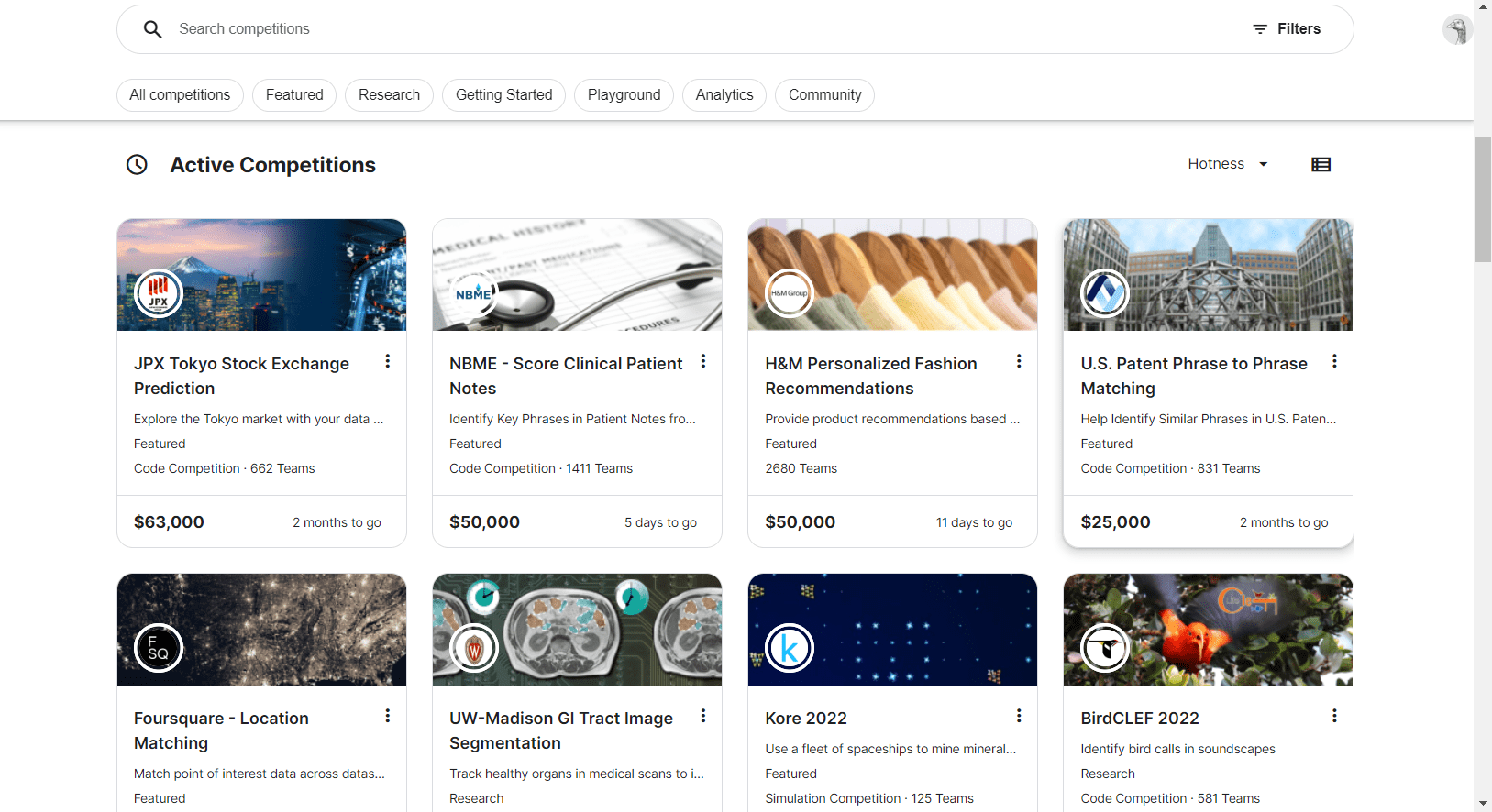
Kaggle Competitions
In addition to that, Kaggle also offers some courses and a discussions page for you to learn more about machine learning and talk with other machine learning practitioners!
For the rest of this article, we’ll focus on how we can use Kaggle’s datasets and notebooks to help us when working on our own machine learning projects or finding new projects to work on.
Setting up Kaggle Notebooks
To get started with Kaggle Notebooks, you’ll need to create a Kaggle account either using an existing Google account or creating one using your email.
Then, go to the “Code” page.
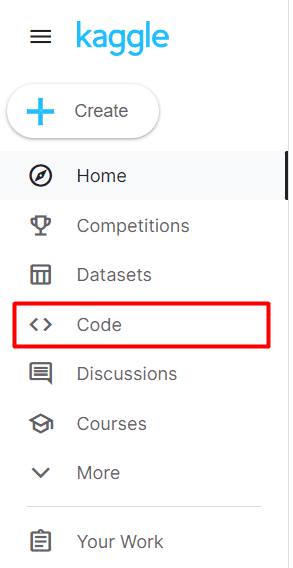
Left Sidebar of Kaggle Home Page, Code Tab
You will then be able to see your own notebooks as well as public notebooks by others. To create your own notebook, click on New Notebook.
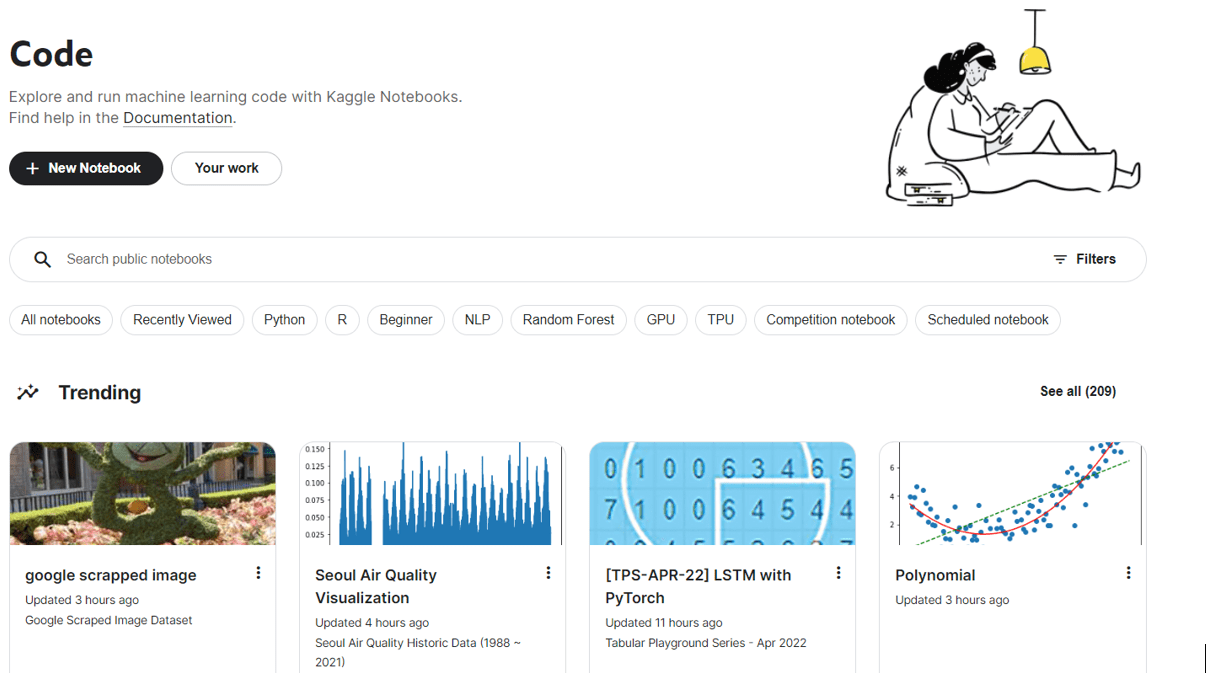
Kaggle Code Page
This will create your new notebook, which looks like a Jupyter notebook, with many similar commands and shortcuts.
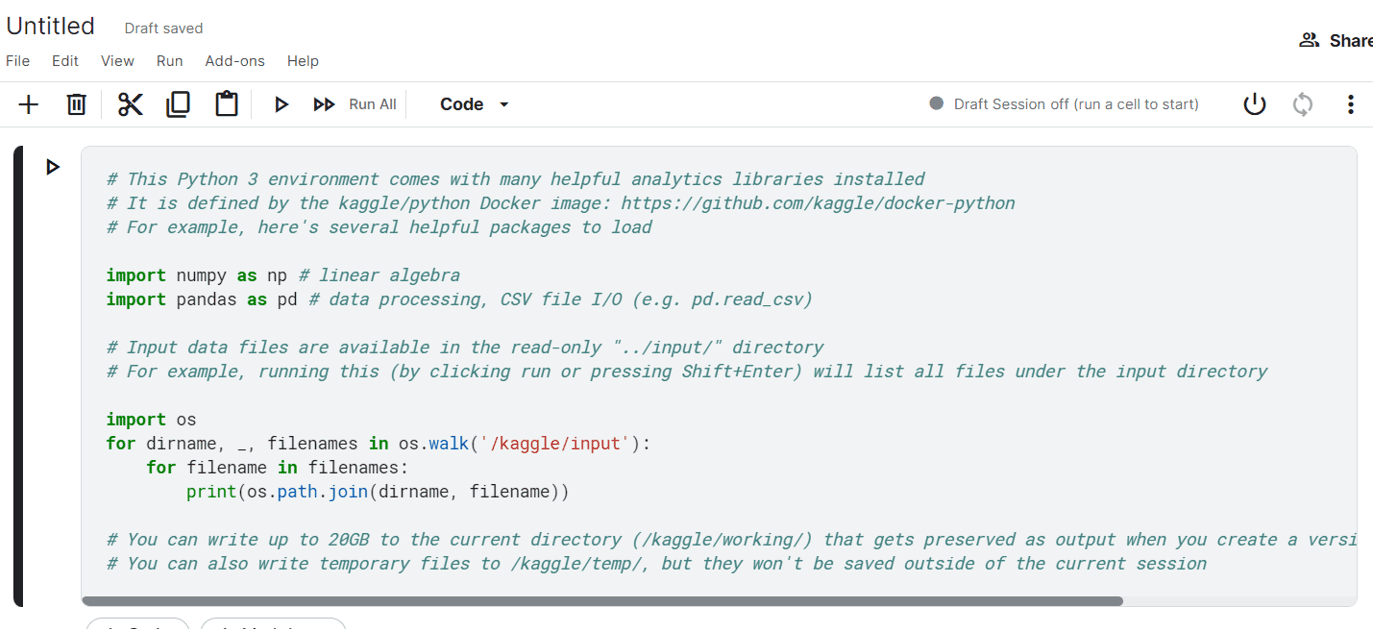
Kaggle Notebook
You can also toggle between a notebook editor and script editor by going to File -> Editor Type.
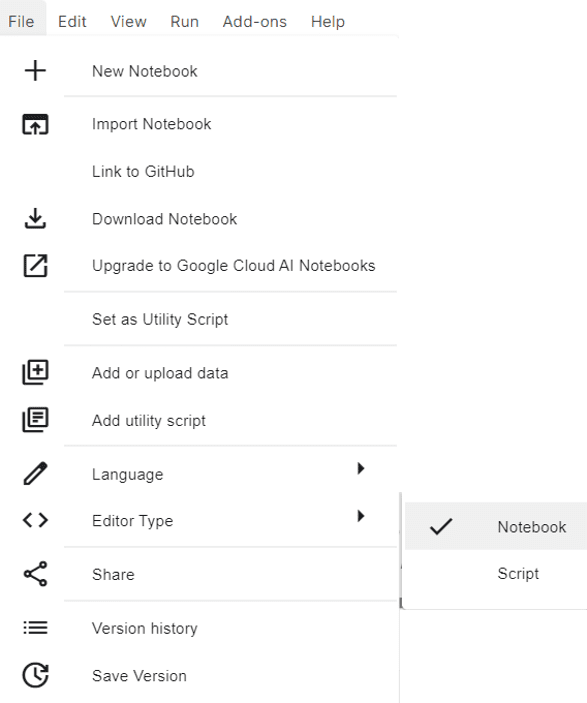
Changing Editor Type in Kaggle Notebook
Changing the editor type to script shows this instead:
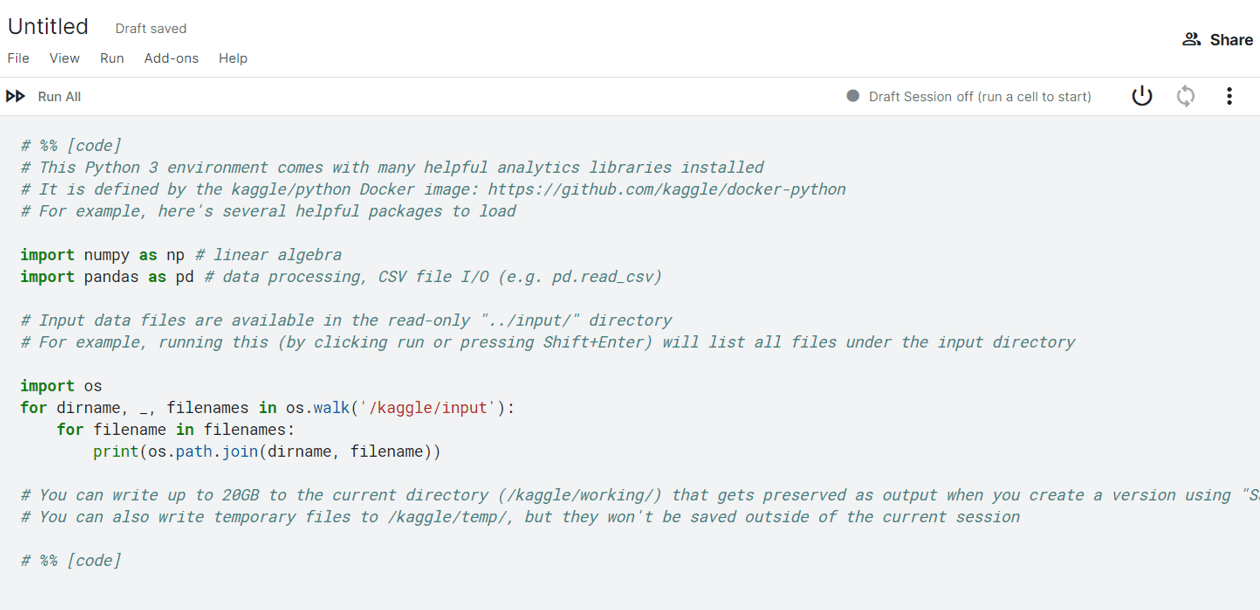
Kaggle Notebook Script Editor Type
Using Kaggle with GPUs/TPUs
Who doesn’t love free GPU time for machine learning projects? GPUs can help to massively speed up the training and inference of machine learning models, especially with deep learning models.
Kaggle comes with some free allocation of GPUs and TPUs, which you can use for your projects. At the time of this writing, the availability is 30 hours a week for GPUs and 20 hours a week for TPUs after verifying your account with a phone number.
To attach an accelerator to your notebook, go to Settings ▷ Environment ▷ Preferences.
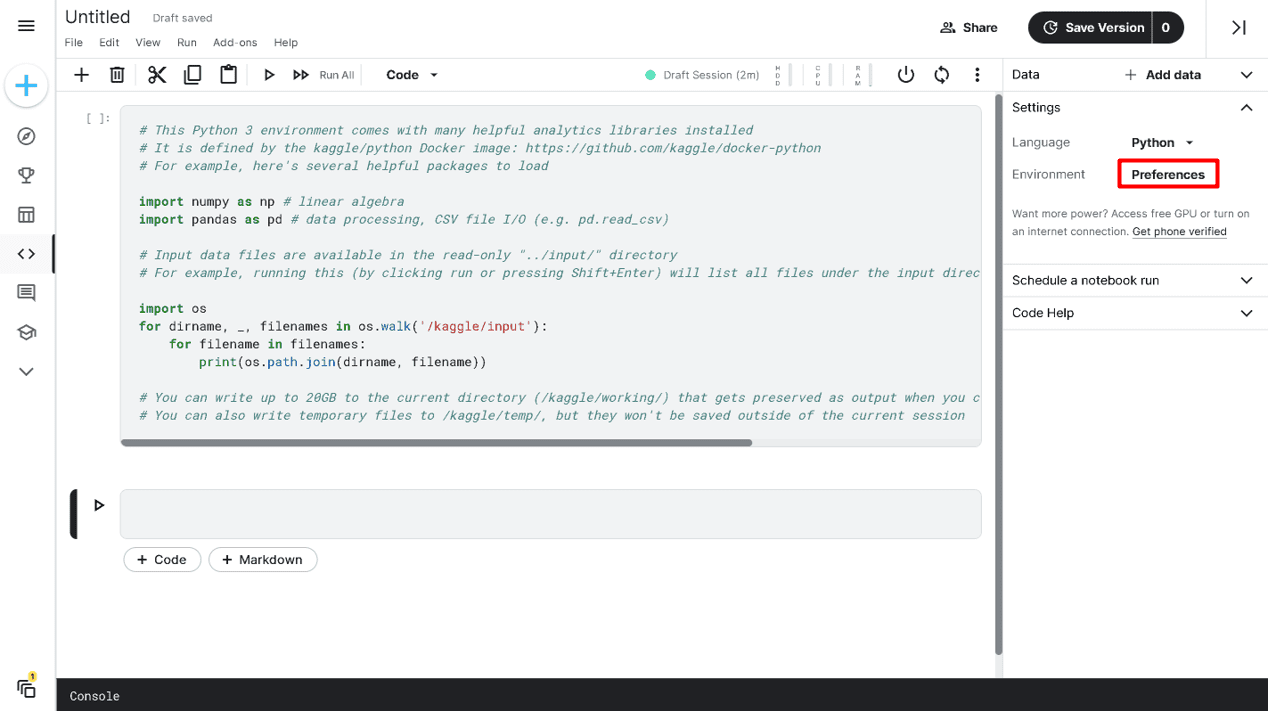
Changing Kaggle Notebook Environment preferences
You’ll be asked to verify your account with a phone number.

Verify phone number
And then presented with this page which lists the amount of availability you have left and mentions that turning on GPUs will reduce the number of CPUs available, so it’s probably only a good idea when doing training/inference with neural networks.
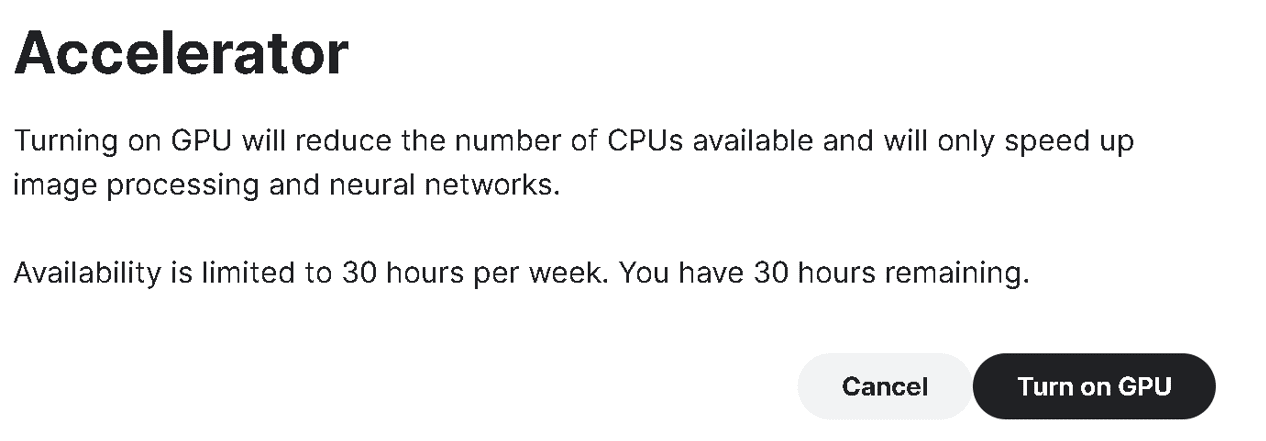
Adding GPU Accelerator to Kaggle Notebook
Using Kaggle Datasets with Kaggle Notebooks
Machine learning projects are data-hungry monsters, and finding datasets for our current projects or looking for datasets to start new projects is always a chore. Luckily, Kaggle has a rich collection of datasets contributed by users and from competitions. These datasets can be a treasure trove for people looking for data for their current machine learning project or people looking for new ideas for projects.
Let’s explore how we can add these datasets to our Kaggle notebook.
First, click on Add data on the right sidebar.
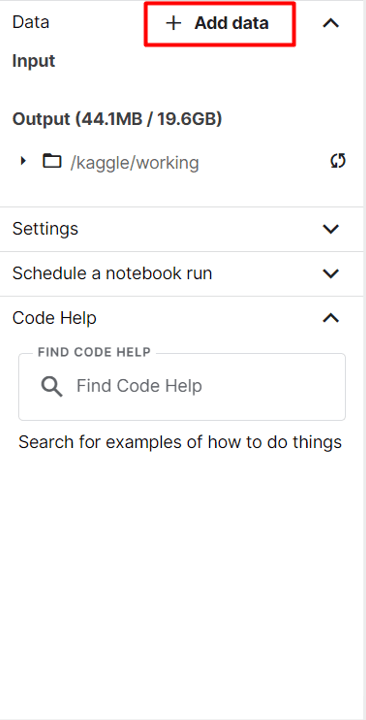
Adding Datasets to Kaggle Notebook Environment
A window should appear that shows you some of the publicly available datasets and gives you the option to upload your own dataset for use with your Kaggle notebook.
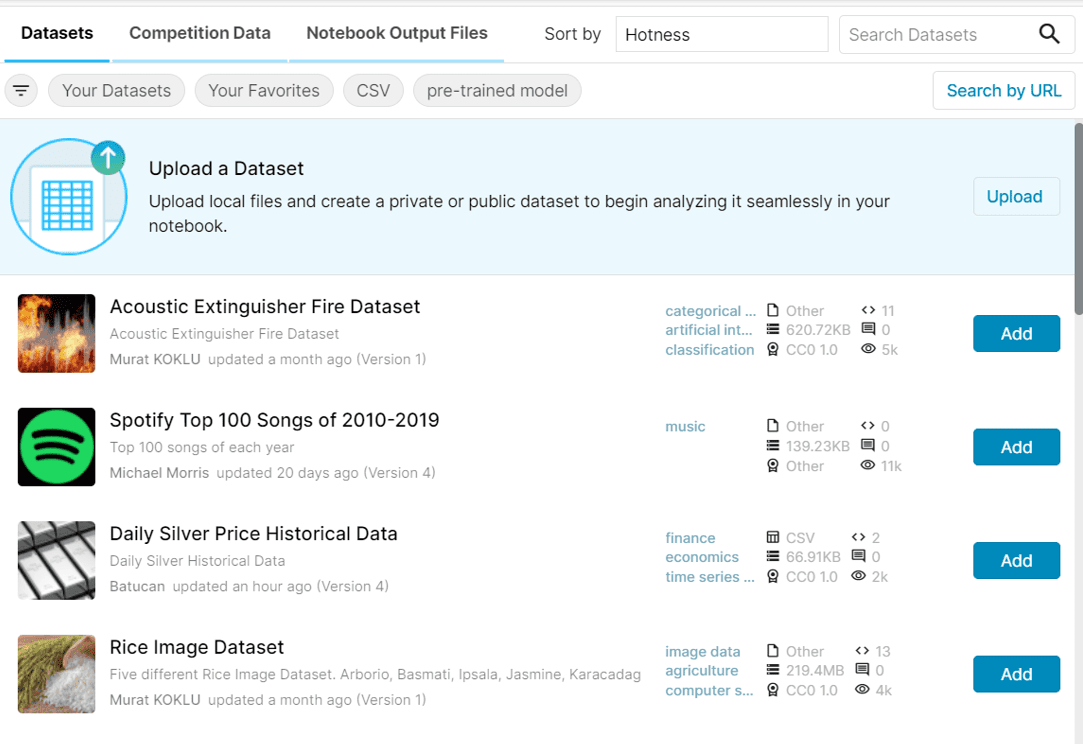
Searching Through Kaggle datasets
I’ll be using the classic titanic dataset as my example for this tutorial, which you can find by keying your search terms into the search bar on the top right of the window.
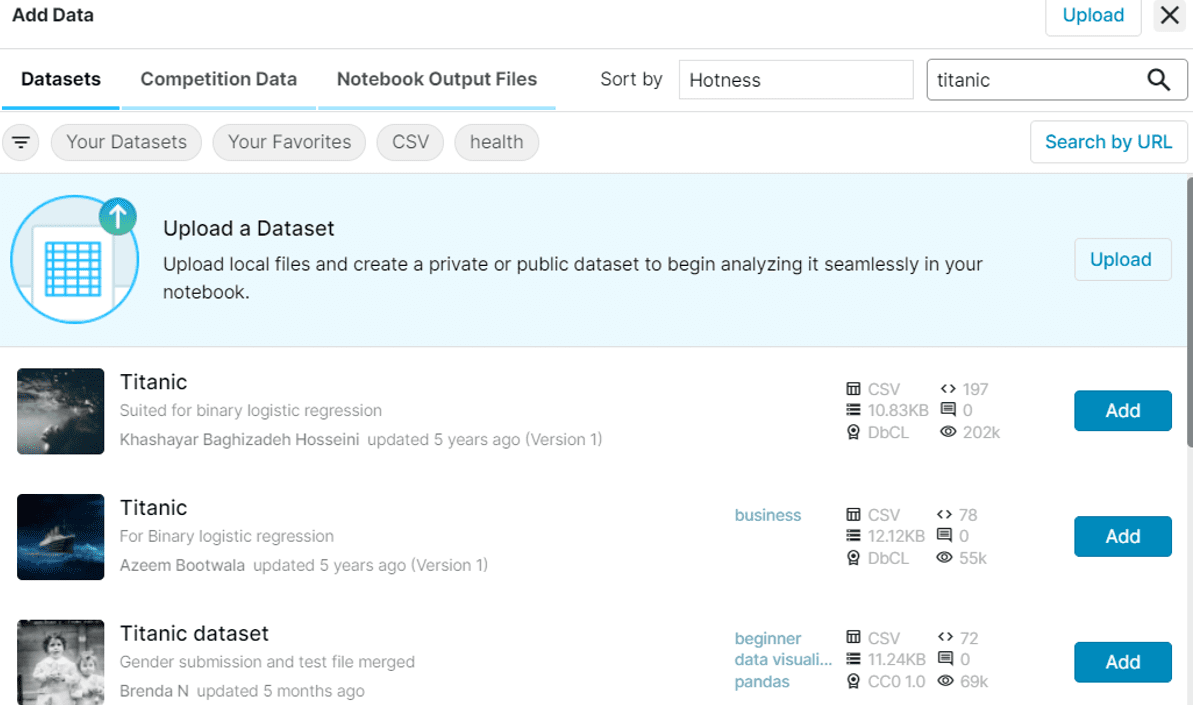
Kaggle Datasets Filtered with “Titanic” Keyword
After that, the dataset is available to be used by the notebook. To access the files, take a look at the path for the file and prepend ../input/{path}. For example, the file path for the titanic dataset is:
In the notebook, we can read the data using:
This gets us the data from the file:
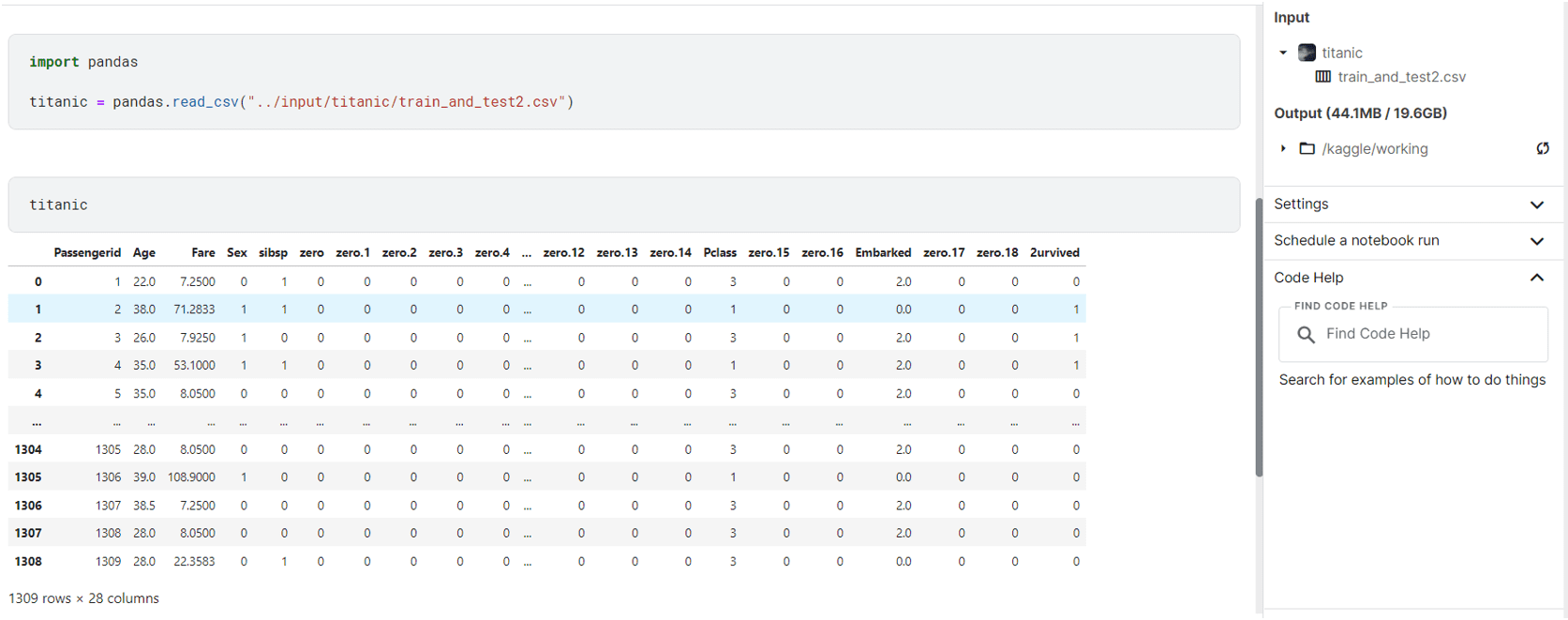
Using Titanic Dataset in Kaggle Notebook
Using Kaggle Datasets with Kaggle CLI Tool
Kaggle also has a public API with a CLI tool which we can use to download datasets, interact with competitions, and much more. We’ll be looking at how to set up and download Kaggle datasets using the CLI tool.
To get started, install the CLI tool using:
For Mac/Linux users, you might need:
Then, you’ll need to create an API token for authentication. Go to Kaggle’s webpage, click on your profile icon in the top right corner and go to Account.
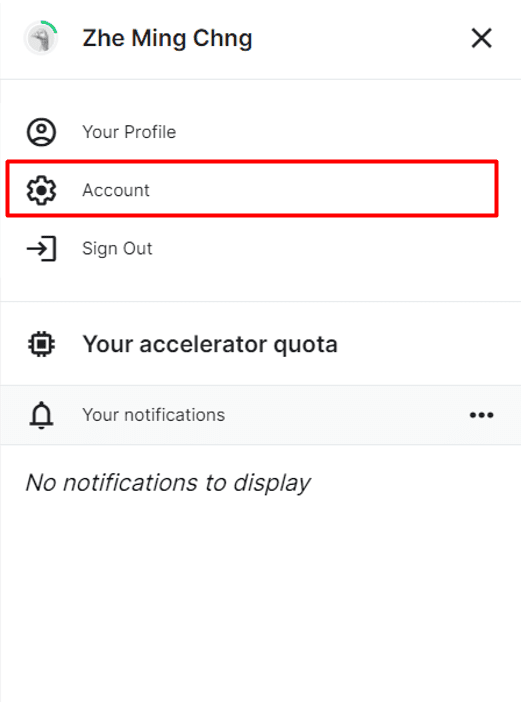
Going to Kaggle Account Settings
From there, scroll down to Create New API Token:
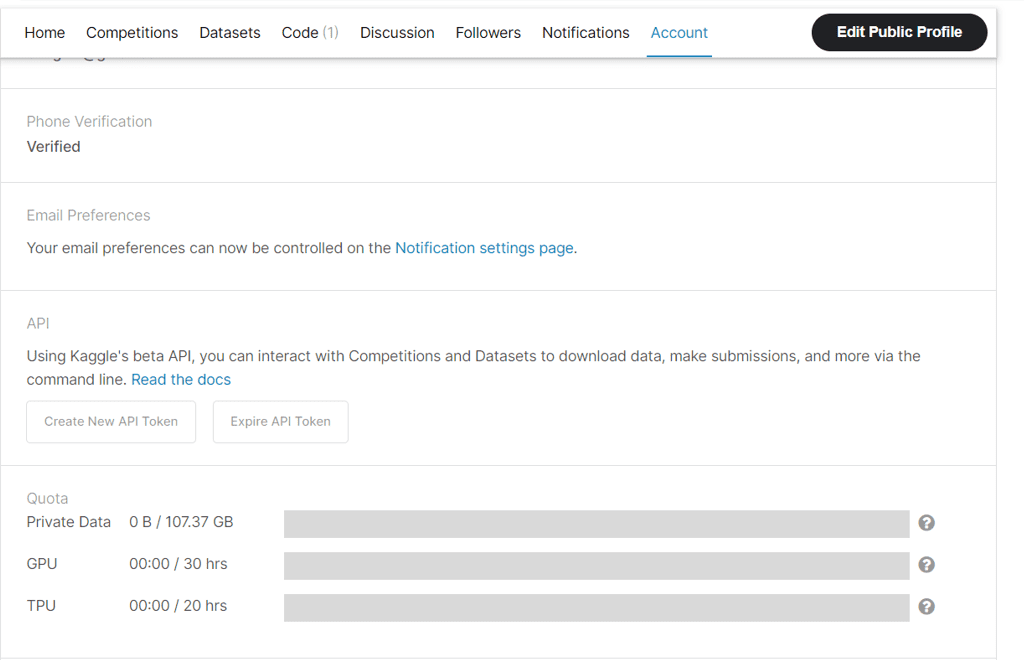
Generating New API Token for Kaggle Public API
This will download a kaggle.json file that you’ll use to authenticate yourself with the Kaggle CLI tool. You will have to place it in the correct location for it to work. For Linux/Mac/Unix-based operating systems, this should be placed at ~/.kaggle/kaggle.json, and for Windows users, it should be placed at C:\Users\<Windows-username>\.kaggle\kaggle.json. Placing it in the wrong location and calling kaggle in the command line will give an error:
Now, let’s get started on downloading those datasets!
To search for datasets using a search term, e.g., titanic, we can use:
Searching for titanic, we get:
To download the first dataset in that list, we can use:
Using a Jupyter notebook to read the file, similar to the Kaggle notebook example, gives us:
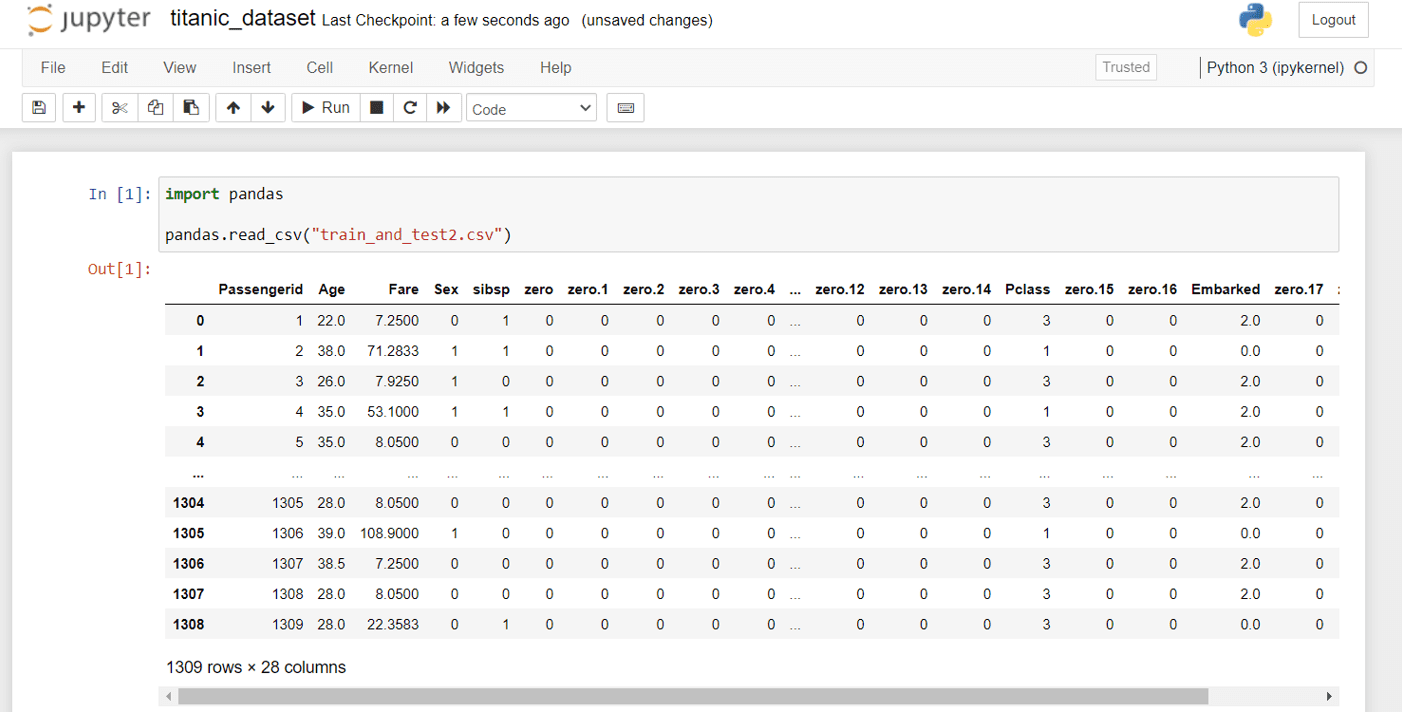
Using Titanic Dataset in Jupyter Notebook
Of course, some datasets are so large in size that you may not want to keep them on your own disk. Nonetheless, this is one of the free resources provided by Kaggle for your machine learning projects!
Further Reading
This section provides more resources if you’re interested in going deeper into the topic.
- Kaggle: https://www.kaggle.com
- Kaggle API documentation: https://www.kaggle.com/docs/api
Summary
In this tutorial, you learned what Kaggle is , how we can use Kaggle to get datasets, and even for some free GPU/TPU instances within Kaggle Notebooks. You’ve also seen how we can use Kaggle API’s CLI tool to download datasets for us to use in our local environments.
Specifically, you learnt:
- What is Kaggle
- How to use Kaggle notebooks along with their GPU/TPU accelerator
- How to use Kaggle datasets in Kaggle notebooks or download them using Kaggle’s CLI tool






No comments:
Post a Comment